Order Tracking Page Heatmap: Answering 'Where Is My Order?' in December
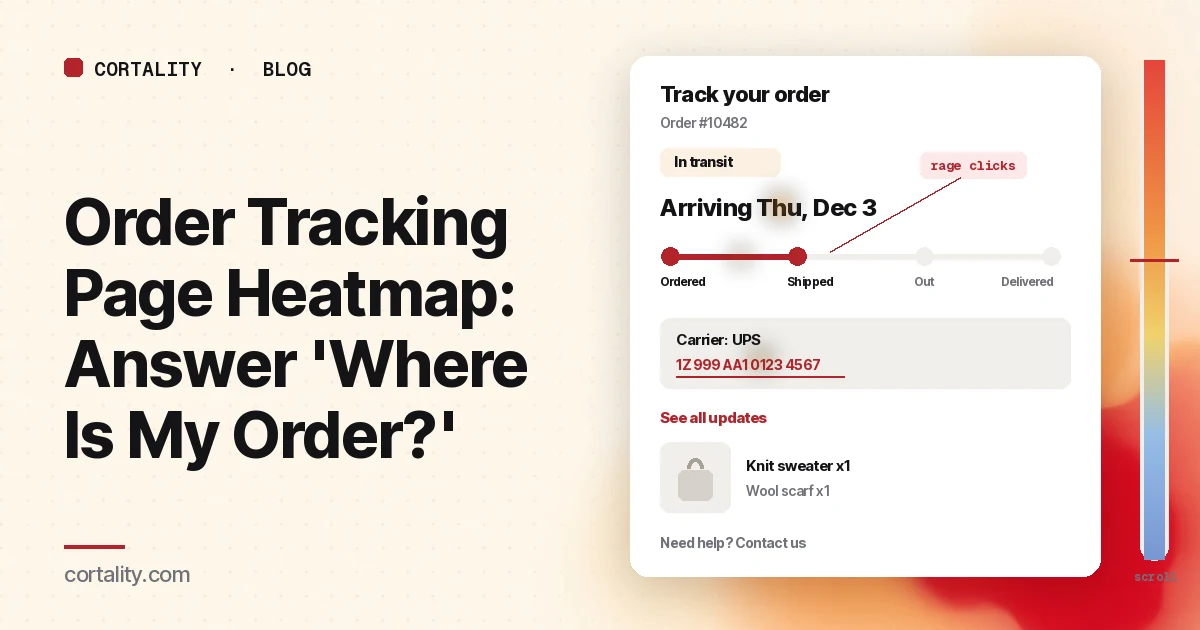
The week after Cyber Monday, a different kind of visitor starts arriving. They've already paid. They aren't comparing prices or reading reviews. They have one question, and they'll come back to ask it again and again until the parcel is on the doorstep: where is my order, and will it get here in time?
The page that answers that question is the order tracking page. It might be a page in the customer account, a "track your order" page with a lookup form for guests, or a page run by a shipping app. Whatever form it takes, in December it's one of the most visited pages on many stores, and one of the least looked at by the people who run them.
This guide is about reading a heatmap of that page: what to set up, what to look at first, what the common patterns usually mean, and which change to make first. It's part of our page-type series. The order confirmation page heatmap covers the page buyers see right after they pay. This one covers the visits that come days later. For the store-wide review of the sale, start with the Black Friday post-mortem, and for a wider audit of the site once the sale is over, see how to audit your website after Black Friday. If you're new to heatmaps, how to read a website heatmap covers the basics first.
Why the tracking page needs its own read
A buyer opening the tracking page is trying to answer a short list of questions:
- When will it arrive? A date, or a narrow range, not just "shipped".
- Is it moving? Has anything happened since yesterday?
- Who has it? Which carrier, and what's the tracking number?
- What's in this parcel? Especially when one order ships in more than one box.
- Will it make it before the holiday? If not, what can I do?
- Who do I ask if something's wrong? Late, stuck, or marked delivered but not here.
It's worth knowing how much this page matters to buyers. In a Baymard Institute quantitative study, 50% of respondents said order tracking is the most important account feature. Yet 67% of the sites Baymard tested didn't consistently provide all the key tracking details, and 25% failed to reliably show an expected delivery date. Baymard found that buyers went to carrier and third-party tracking sites mainly when the store's own page made them (Baymard Institute, Order Tracking UX: 6 Key Details to Provide). Use that as context for what to check, not a forecast of your own numbers.
What an order tracking page heatmap shows
A heatmap adds up clicks and scrolls from many visits onto one screenshot of the page. Microsoft Clarity, a free analytics tool, will draw one from any amount of traffic, for a single page or a group of pages (Microsoft Clarity, Heatmaps overview).
The click map ranks elements by clicks, including things that aren't links, and lets you switch to dead clicks, rage clicks, first clicks and last clicks. From any element you can open the session recordings behind it (Microsoft Clarity, Click maps). On a tracking page, that shows whether buyers stop at the delivery date, open the shipping history, follow the tracking number out to the carrier, or head for the contact link.
The scroll map shows how far down the page people get (Microsoft Clarity, Scroll maps). On a tracking page, it shows whether buyers ever reach the package contents, the shipping history or the help section at the bottom.
Like a wishlist, this page shows each visitor something different: their own order, at its own stage. So read the map by part of the page, not by order: the delivery line, the progress bar, the tracking number, the history link and the contact options sit in the same places for everyone. Questions about particular orders belong to session recordings and your order system.
Check your tool records the page you think it does
Tracking pages are often built by a shipping or post-purchase app, loaded after the page itself, or hosted somewhere else entirely. Before reading anything, open a few session recordings and check three things.
Does the recording show the tracking details, or a loading state? If the status loads late from the carrier, the heatmap screenshot may show a spinner while the clicks land where the details appeared.
Which version are you looking at? A guest lookup form and a filled-in tracking result can share one address. If they do, you're reading two pages in one map. Split them if your tool can filter by a page state or a custom tag, or read recordings from both.
Is the page yours at all? If your "Track order" button links to the carrier's site, there's nothing of yours to map there. On Shopify, also check how your tool handles the Order status page, which doesn't run theme scripts; our order confirmation page heatmap guide covers that.
Tracking pages show names, addresses and order details. Clarity masks sensitive text by default, and you can choose how strict that masking is (Microsoft Clarity, Masking). Check your settings before you share recordings with anyone.
Set it up so the map means something
- Read the lookup form and the result separately. For guests, the form is the first hurdle. Note how many visits get past it.
- Note where visitors come from. Most arrive from a shipping email or text. If your analytics can filter by source, read email visits on their own: they arrive with a specific update in mind.
- Split by device. Shipping updates are usually opened on a phone. Read mobile and desktop separately. Our guide to mobile vs desktop heatmaps explains why the maps differ.
- Use a window inside the shipping season. Visits in early December, with gifts on the line, are different from visits in a quiet month. Don't mix the two.
- Write down what counts as a good outcome. Usually a visit that ends after the delivery date is seen, with no contact click and no second lookup the same day.
- Read it next to your support inbox. Count "where is my order" messages over the same window. The heatmap tells you where the page fails; the inbox tells you what it costs.
- Use a fixed window. Aim for a few hundred page views per device. If your traffic is low, heatmaps on a low-traffic website covers what you can still learn. Before you have data, our free page leak scan predicts where attention will land. It's a prediction, not your visitors' behavior, but it shows where to look first.
Read the first screen first
Expect most attention near the top. In Nielsen Norman Group's eyetracking research, people spent about 57% of their page-viewing time above the fold and about 17% on the second screenful (Nielsen Norman Group, Scrolling and Attention). On a tracking page, the first screen should answer the first question: when will it arrive?
Check that there's a delivery date, not just a status. "Shipped" or "In transit" doesn't tell a buyer whether a gift will make it. A date or a short range does.
Check that the status is plain. A progress bar with a few named steps (ordered, shipped, out for delivery, delivered) answers "is it moving?" at a glance.
Check that the carrier and tracking number are visible and linked. Some buyers want the carrier's own page. Give them the link, but don't make it the only place the date lives.
Then read the clicks
Dead clicks on the delivery date or the status are the pattern to look for first. They usually mean buyers want more than the page gives them: a date instead of a status, or a reason for a delay. Add the detail, or make the element open the shipping history.
Rage clicks on the progress bar or a tracking widget often mean the details are slow to load or the steps look clickable but aren't. Check the recordings for spinners and empty states on mobile data.
Heavy clicks on the tracking number show buyers leaving for the carrier's site. That's fine if they want more detail, but if the store's page has no delivery date or history, they're leaving because they have to.
Repeat visits from the same buyer within hours usually mean the page didn't settle the question. Look at what they clicked last time. A clear date, or a note on what happens next, may answer it the first time.
Clicks on contact, help or chat from the tracking page are worth counting before and after any change. Our contact page heatmap guide covers what happens when they get there, and the FAQ page heatmap covers the self-service answers that can sit in between.
Failed lookups on the guest form (errors, retries, then an exit) point at the form itself. Common causes are asking for an order number format the buyer can't find in the email, or a field that rejects spaces or a leading "#".
Clicks on "returns" or "exchange" right after a "Delivered" status are a different job: the parcel arrived and something's wrong. Our holiday returns policy page heatmap covers that page.
Then read the scroll map
Note the average fold on each device. If the shipping history, package contents or help links sit below it and the scroll map drops off quickly, most buyers never see them. Put the date and status first, then the contents of this parcel, then the history.
If the page ends with recommendations or a promotion, check how many buyers reach them and whether anyone clicks. A buyer worried about a late gift is a poor audience for a cross-sell; a buyer whose parcel is out for delivery may be a better one. Our scroll map analysis guide goes deeper on reading drop-off.
Split shipments and holiday cutoffs
Black Friday orders often ship in more than one parcel. If your tracking page shows one status for the whole order, buyers will see "Delivered" when half of it is still on the way, and click around looking for the rest. Show each parcel with its own items and status.
In December, delivery dates meet holiday deadlines. If an order is unlikely to arrive in time, say so on the tracking page and say what the buyer can do, rather than letting them find out on the day. Our post on holiday shipping cutoff dates covers how to show cutoffs before the order, which is what keeps this page calm after it.
Common mistakes reading an order tracking page heatmap
Reading orders, not parts of the page. Every visitor sees a different order. Read the date line, the bar, the links and the help options, and leave order questions to recordings.
Mixing the lookup form and the result. A form and a status page in one map make no sense together. Separate them.
Treating carrier clicks as success. A click out to the carrier is a buyer leaving to find an answer. Check whether your page already gave it.
Ignoring repeat visits. One buyer checking five times looks like five engaged visits. It's one unanswered question.
Reading it without the inbox. The point of a better tracking page is fewer worried buyers. Count contact clicks and support messages over the same window.
Turn one pattern into one change
Pick one pattern, write down what you think it means, make one change, and re-measure over a window of the same length. For example (illustrative): "On mobile, many buyers tap the In transit status and then the contact link. If we add an expected delivery date under the status, the share of tracking page visits that end in a contact click should fall over the next two weeks."
Our CRO hypothesis template gives you a format for writing these down. If your traffic is too low for a clean A/B test, CRO without A/B testing shows how to measure a before-and-after honestly. If you'd rather not run that re-measurement by hand, every Cortality plan re-measures each fix you ship; compare the plans.
Order tracking page heatmap checklist (copy this)
- Session recordings show the tracking details loading, not a spinner
- Guest lookup form and tracking result read separately
- Tracking page confirmed to be on your domain and recorded
- Visits from shipping emails read on their own
- Desktop and mobile read separately
- Window inside the holiday shipping season
- Good outcome written down: date seen, no contact click, no repeat lookup
- Expected delivery date on the first screen
- Status progress bar with named steps
- Carrier name and linked tracking number shown
- Each parcel in a split shipment shown with its own items and status
- Contact clicks and support messages counted over the same window
- Masking settings checked before sharing recordings
- One change shipped, re-measured over the same window length
Where Cortality fits
Most of this comes down to one question: does a buyer leave the tracking page knowing when their order will arrive, without asking you? Cortality measures how real visitors use every part of your page, including the delivery date, the status bar, the tracking link, the shipping history and the contact options, on each device. You get a ranked list of fixes, each with the evidence and the exact change to make, and after you ship a fix Cortality re-measures it and tells you whether it worked. It works alongside Google Analytics and Microsoft Clarity rather than replacing them. See how it works or what a finding looks like. If you run a Shopify store, see Cortality for Shopify stores.
For a quick first look, our free page leak scan takes about a minute and needs no install. It's a prediction from our attention model, not data from your real visitors, so use it to decide where to look first.
Plans are $99, $249 or $499 a month (Starter, Growth and Scale). Start your free week, and you see your first report before you pay. You save a card at signup, and nothing is charged until 3 days after your first report. Cancel before then and you pay nothing, and any charge can be refunded within 14 days. How the free week works.
Questions
What does an order tracking page heatmap show?
Where buyers click or tap on the page that shows the status of their order, how far they scroll, and which elements they click that don't respond. That usually means whether they find the delivery date, open the shipping history, follow the tracking number to the carrier, or look for a way to contact you. On a guest lookup page, it also shows whether they get through the order number and email form.
Why read the order tracking page in December?
Because that's when it gets the most visits with the most at stake. Black Friday and Cyber Monday orders ship in late November and early December, and many of them are gifts with a date attached. A buyer who can't tell when a parcel will arrive often checks again, contacts support, or both.
What should an order tracking page show?
Baymard Institute lists six details: an expected delivery date, an order status progress bar, the carrier name, a linked tracking number, a detailed shipping history and a summary of what's in the package. In its testing, buyers went to carrier and third-party tracking sites mainly when the store's own page left those details out.
My tracking page is run by an app or the carrier. Can I still get a heatmap?
Only of the pages your script runs on. If the tracking page is hosted by a shipping app on your domain, check whether your analytics or recording tool records it. If the link sends buyers to the carrier's website, you can't map that page, but you can see how many leave for it from your own pages. An empty map is a setup question first, not a finding.
Where does Cortality fit on an order tracking page?
Cortality measures how real visitors use each part of your page, including the delivery date, the status bar, the tracking link, the shipping history and the contact options, on each device. It ranks what to fix, and re-measures each change you ship. It works alongside Google Analytics and Microsoft Clarity rather than replacing them. Before a page has traffic, the free page leak scan at /leak/ is a prediction from our attention model, not data from your real visitors.