Heatmaps on a Low-Traffic Website: What You Can Trust, and What to Do Instead
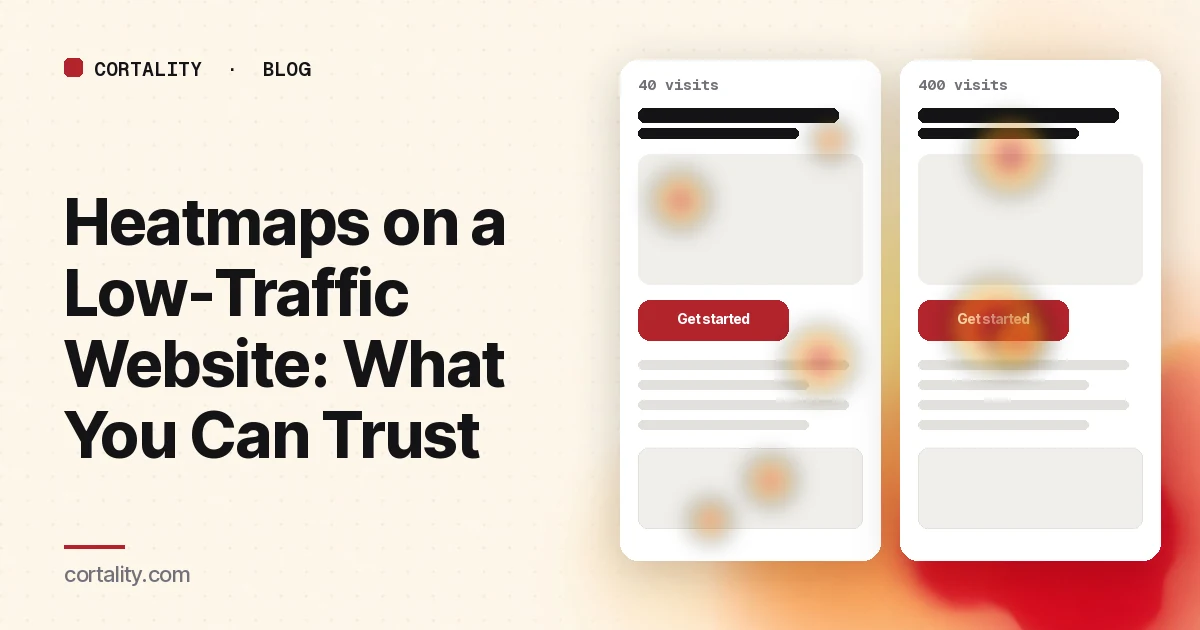
Heatmaps look certain. Hot red blocks, cold blue gaps, a clear picture of where people click and how far they scroll. On a page with a few thousand visits a month, that picture is usually close to the truth. On a page with a few hundred, or a few dozen, it can be mostly noise, and it looks just as confident.
That matters because a small site can't afford to spend its few changes on the wrong thing. This guide covers how to tell whether a heatmap from limited traffic is worth reading, how to get more signal out of the visitors you do have, and what to look for in a tool when traffic is thin.
Why a low-traffic heatmap can mislead you
A heatmap is an average. Every color on it is built from individual sessions, and on a small sample a few unusual sessions move the colors a lot.
Some quick arithmetic shows how fast that happens. If a heatmap is built from 50 sessions, every single visitor is 2% of the picture. One person who rage-clicks a logo eight times, or one returning customer who jumps straight to the footer to find your phone number, can paint a "hot spot" that has nothing to do with how new visitors use the page. At 500 sessions, that same visitor is 0.2%, and their quirks mostly wash out.
Three things make small samples worse than they first appear:
- The sample isn't random. A week of traffic might be mostly one newsletter send, one ad, or one Reddit thread. Those visitors arrive with a specific intent and behave differently from your usual traffic.
- Device splits shrink it further. A heatmap tool shows desktop and mobile separately because the layouts differ. If 70% of your visits are on phones, a 100-session desktop map is really built from about 30.
- Below the fold, the numbers drop. Click data for a section near the bottom of the page comes only from the visitors who scrolled that far. A page with 200 sessions might have 40 that reached the testimonials.
None of this means heatmaps are useless on a small site. It means you have to match the question to the amount of data.
Questions a small sample can answer, and ones it can't
Some questions only need a rough answer, so they settle quickly. Others depend on small differences, and those need far more sessions.
| Question | Works with little traffic? | Why |
|---|---|---|
| Do most phone visitors ever reach the main button? | Usually yes | It's a big yes-or-no pattern; the scroll map shows it even with modest data |
| Is a non-clickable element drawing lots of taps? | Usually yes | Repeated taps on an image or a headline from different visitors are hard to explain away |
| Does anyone open the FAQ or the size guide? | Often | A near-zero result is clear; a "some people" result is not |
| Which of two similar buttons gets more clicks? | Rarely | The gap between them is often smaller than the noise |
| Did my change lift clicks by a few percent? | No | Small lifts need large samples, or a longer window |
If your question is in the bottom two rows, a heatmap from a few hundred sessions won't settle it, no matter which tool built it. For the background on why, see our guide to CRO without A/B testing, which covers the same sample-size problem for tests.
A simple test: does your heatmap hold up if you split it?
You don't need a statistics package to sanity-check a heatmap. Most tools let you filter by date, so try this:
- Pick the date range you were going to use.
- Build the map for the first half of that range, then for the second half.
- Compare them for the question you care about. Is the main button reached by "most" visitors in both? Is the same element drawing taps in both?
If the two halves agree, the pattern is probably real. If they tell different stories, the map is mostly noise for that question, and you need a longer window or a bigger question. It takes five minutes and saves you from rebuilding a section because of one odd week.
Five ways to get more signal from fewer visitors
1. Use a longer window, but keep the page stable
The simplest fix is time. Collecting for six weeks instead of one gives you six times the sessions. The catch: if the page changed during that window, the map blends two versions. Note the date of every change, and only build maps from periods when the page stayed the same.
2. Look at templates, not single pages
On a store or a blog, many pages share one layout. Twenty product pages on the same template, each with 40 visits, tell you more together than any one of them does alone, at least for layout questions like "do people reach the reviews block?" Some tools let you group URLs by a pattern; if yours doesn't, start with the template that gets the most combined traffic.
3. Pick one device and stick to it
Check your analytics for the device that brings most of your visitors, and read only that heatmap. Merging desktop and mobile to "get more data" gives you a map of a page nobody saw, because the elements sit in different places on each.
4. Read scroll and attention before clicks
Scroll depth and time in view come from every visitor, including the ones who never click anything. Click maps only come from the minority who click. On a small site, the question "did visitors even see this part of the page?" is often more answerable, and more useful, than "what did they click?" Our guide to element-level website analytics explains how to measure seen rate and time in view for each part of a page.
5. Pair the map with a handful of recordings
A heatmap shows where things happen; a session recording shows why. When a map hints at something, watch five to ten recordings of visitors who reached that part of the page. If several of them hesitate at the same spot, scroll back up to re-read the price, or tap an image that isn't a link, the pattern is real enough to act on.
When there's too little traffic for any map
Some pages are new, seasonal or simply quiet. You can still make progress:
- Run a five-person usability test. Ask five people who fit your audience to do the page's main task (find the price, book a call, add to cart) while thinking aloud. You'll see the biggest problems quickly, without any traffic.
- Use a predicted attention map. Attention models predict where people are likely to look on a page from its design alone. It's a prediction, not your visitors' behavior, but it's a reasonable way to pick where to look first.
- Work through a checklist. Many low-converting pages fail the same basic checks. Our landing page conversion checks and website UX audit checklist are good places to start.
What to look for in a heatmap tool when traffic is thin
If you're choosing a heatmap tool for a low-traffic website, the feature lists all look alike. These are the questions that matter when every visitor counts:
- Does it show how many sessions each map is built from? If you can't see the sample size on the map, you can't judge it.
- Can you filter by date and device? You need both for the split test above and for single-device reading.
- Does it record every session, or a sample? Some plans record only a share of visits to keep costs down. On a small site, sampling throws away data you can't spare.
- Can it group pages that share a template? That's often the difference between "not enough data" and a usable answer.
- Does it give numbers per element, not only colors? A count like "38% of phone visitors had the button on screen" is easier to compare over time than a shade of orange.
- Does it tell you what to change? Colors still leave you to interpret the map and rank the fixes yourself. That's fine if you have the time; on a small team it's often where the work stalls. Our guide on how to read a website heatmap covers that step if you're doing it by hand.
Where Cortality fits
Cortality measures how real visitors use every part of your page: where they look, scroll, tap and stop, on each headline, image, button and form field, as numbers per element rather than colors alone. From there you get a ranked list of fixes, each with the evidence behind it and the exact change to make, and after you ship a fix Cortality re-measures it and tells you whether it worked. It works alongside Google Analytics and Microsoft Clarity rather than replacing them. See how it works and what a finding looks like.
If your page doesn't have much traffic yet, our free page leak scan is a good first step. It takes about a minute, needs no install, and shows where visitors are likely to look on your page at desktop and phone widths. It's a prediction from our attention model, not data from your real visitors, so use it to decide where to look first.
Plans are $99, $249 or $499 a month (Starter, Growth and Scale). Start your free week, and you see your first report before you pay. You save a card at signup, and nothing is charged until 3 days after your first report. Cancel before then and you pay nothing, and any charge can be refunded within 14 days. How the free week works.
Questions
How many visitors does a heatmap need?
There's no single number, because it depends on what you're asking. A scroll map answering "do most people reach the pricing section?" settles down with far fewer sessions than a click map answering "which of these six links gets more clicks?" A practical test: split the sessions into two halves by date and build a map from each. If both halves tell the same story, you have enough for that question.
Are heatmaps useful for a small website?
Yes, if you use them for big, obvious patterns: a main button most phone visitors never scroll to, a section nearly everyone skips, a non-link that draws taps. They're much weaker for fine comparisons between similar elements, which need more sessions than most small sites get in a few weeks.
Should I combine desktop and mobile heatmaps to get more data?
Usually not. Phones and desktops lay the page out differently, so a combined map blends two different pages into one picture. It's better to wait longer, or to look only at the device that brings most of your traffic.
What can I do if my site gets too few visitors for any heatmap?
Watch a handful of session recordings end to end, run a five-person usability test on the page's main task, and use a predicted attention map to decide where to look first. Then make one change at a time and compare equal windows before and after.