How to Read a Website Heatmap and Decide What to Fix First
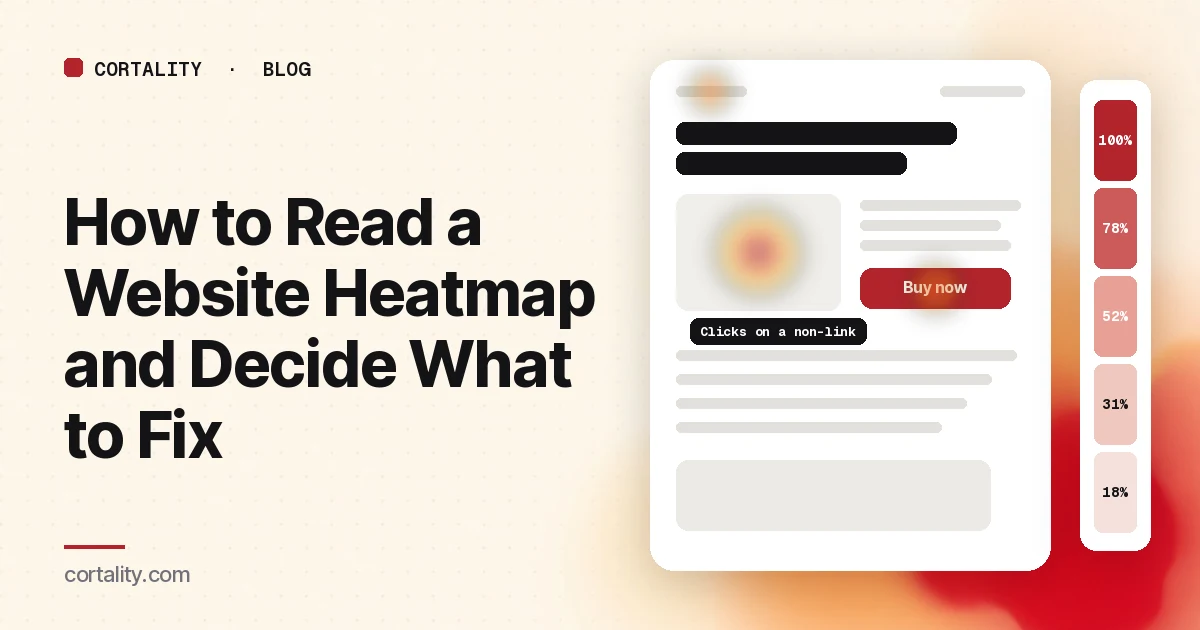
You installed a heatmap, opened it, and saw a page covered in red, yellow and blue blobs. Now what?
Heatmaps are good at showing where visitors clicked and how far they scrolled. They are bad at telling you what to change. This guide explains how to read the common map types, the six patterns worth acting on, the mistakes that lead people to the wrong fix, and how to get from colors to a short, ranked list.
The three maps, and the question each answers
Most products offer some version of these. Microsoft Clarity, for example, offers click maps, scroll maps, area maps, conversion maps and attention maps (Microsoft Learn, Clarity heatmaps overview).
| Map | What it shows | The question it answers |
|---|---|---|
| Scroll map | The share of visitors who reached each point down the page | Did people even see this section? |
| Click map | Where visitors clicked or tapped | Are people acting on the right things? |
| Attention or move map | Where visitors spent time, or where the cursor went on desktop | What holds attention without a click? |
The colors are relative. Red means "more than elsewhere on this page," not "a lot." On a page with 80 visits, a red patch might be four people. Always look for the counts behind the colors.
Read them in this order
1. Scroll map first
There is no point judging a section nobody reaches. Find the line where the share of visitors drops sharply, and note what sits just above and just below it.
Attention concentrates at the top of a page. In a 2018 eyetracking study, Nielsen Norman Group found people spent about 57% of their page-viewing time above the fold and 74% in the first two screens (NN/g, Scrolling and Attention). If your main button, price or key proof sits below where most visitors stop, that is your first finding.
2. Click map second, only for what people reached
Now look at clicks on the parts of the page most visitors actually saw. A button with no clicks below the scroll drop-off tells you about position, not about the button.
3. Attention map last
Use it to find what pulls attention away from the main action, such as a large image, an animated banner or a block of logos. On phones there is no cursor, so treat desktop move maps and phone maps as different pictures.
The 6 patterns worth acting on
1. Clicks on things that aren't links. People tap images, icons, headings or prices expecting something to happen. That usually means they want more detail there. Either make it a link or give them the information in place.
2. Repeated clicks in one spot. Microsoft Clarity flags "rage clicks" when someone clicks several times in a small area in quick succession, and "dead clicks" when a click gets no visible response (Microsoft Learn, Clarity semantic metrics). Both often point to a broken element, a slow response or something that looks clickable and isn't.
3. A cold main button. If the action you care about gets a small share of clicks while the menu, logo or a secondary link gets more, the page is sending people elsewhere.
4. A false bottom. A sharp drop in the scroll map just after a full-width image, a strong color change or a big gap often means visitors think the page has ended.
5. Important content below the drop-off. Pricing, shipping details, the returns policy or the form itself, sitting where few visitors reach. Move it up, or add a short version near the top.
6. Phone and desktop look completely different. The same page often has different problems on each. A layout that works on desktop can push the main button three screens down on a phone. Always split the map by device.
The mistakes that mislead
- Reading a click map as an attention map. No clicks on your headline doesn't mean nobody read it. It isn't a link.
- Trusting a map built from too few visits. Nielsen Norman Group recommends 39 users to get stable heatmaps in eyetracking studies (NN/g, How Many Test Users). Website maps aren't eyetracking, but the lesson holds: small samples make noisy pictures.
- Mixing traffic. A map that blends paid social, search and returning customers averages away the differences between them. Filter by source when you can.
- Mixing page versions. If the page changed during the period, the map shows a blend of the old and new layout.
- Fixing what's red instead of what matters. The hottest area isn't always the problem. Start from your goal, the click you want, and work backwards.
From colors to a fix list
A heatmap gives you observations. You still have to turn them into decisions. For each pattern you find, write one line:
On [page], [device], [observation], so we will [change], and we expect [metric] to move.
For example, with made-up numbers: "On the pricing page, on phones, 60% of visitors never reach the plan table, so we will move a short plan summary above the fold, and we expect more clicks on Choose plan."
Then rank the lines by how many visitors each one affects and how strong the evidence is, and change one thing at a time. If you can't run A/B tests, compare equal periods before and after, as our guide to CRO without A/B testing explains. For a closer look at the parts of a page that get skipped, see which elements visitors ignore.
The checklist (copy this)
- Map split by phone and desktop
- Counts checked behind the colors; enough visits to trust the picture
- One page version and, where possible, one traffic source per map
- Scroll map read first: drop-off line found
- Main button, price and proof checked against the drop-off line
- Click map read for the parts most visitors reached
- Clicks on non-links noted
- Rage and dead clicks checked
- False bottoms found
- Attention map checked for distractions
- Each finding written as page, device, observation, change, metric
- Findings ranked by reach and evidence; one change at a time
Where Cortality fits
Heatmaps show you what happened. You still have to work out what it means and what to change, and that's the slow part.
Cortality isn't another map to interpret. It measures how real visitors use every part of your page through a small tag on your site, then gives you a ranked list of fixes with the exact change for each. After you make a fix, it re-measures to show whether it worked. It works alongside Google Analytics or Microsoft Clarity. You can see what a finding looks like or read how the measurement works.
For a quick starting point before installing anything, our free page leak scan shows where visitors are likely to look on your page and what fixing it could be worth. It takes about a minute, no install needed. The scan is a prediction from our attention model, not data from your real visitors, so treat it as a place to start. You see a first-screen attention prediction right away, and the full findings arrive by email a few minutes later.
If you review client pages before raising ad spend, see Cortality for agencies.
Start your free week and you see your first report before you pay. You save a card at signup, nothing is charged until 3 days after your first report, and you can cancel before then and pay nothing. Any charge can be refunded within 14 days (refund policy). Plans start at $99 a month, and the visitor limits are on the pricing page.
Questions
How do you read a website heatmap?
Match the map to the question. A scroll map shows how many visitors reached each part of the page, a click map shows where they clicked or tapped, and an attention or move map shows where they spent time. Read the scroll map first, then the click map for the parts people actually reached, and always split by phone and desktop.
What do the colors on a heatmap mean?
Warm colors such as red and orange mark areas with more activity, and cool colors such as blue mark areas with less. The scale is relative to the page, so a red area on a quiet page may represent only a handful of visitors. Check the counts behind the colors before you act.
How many visitors do you need for a useful heatmap?
Some products generate a map from very little traffic, but a map built from a few dozen sessions is easy to over-read. Nielsen Norman Group recommends 39 users for stable eyetracking heatmaps in lab studies, which is a useful reminder that small samples produce noisy pictures. Wait for more data before acting on fine detail.
What is the difference between a click map and a scroll map?
A click map shows where visitors clicked or tapped. A scroll map shows how far down the page they got. A button with no clicks might be ignored, or it might sit below the point most visitors reach, so read them together.