Element-Level Website Analytics: How to Measure Every Part of a Page
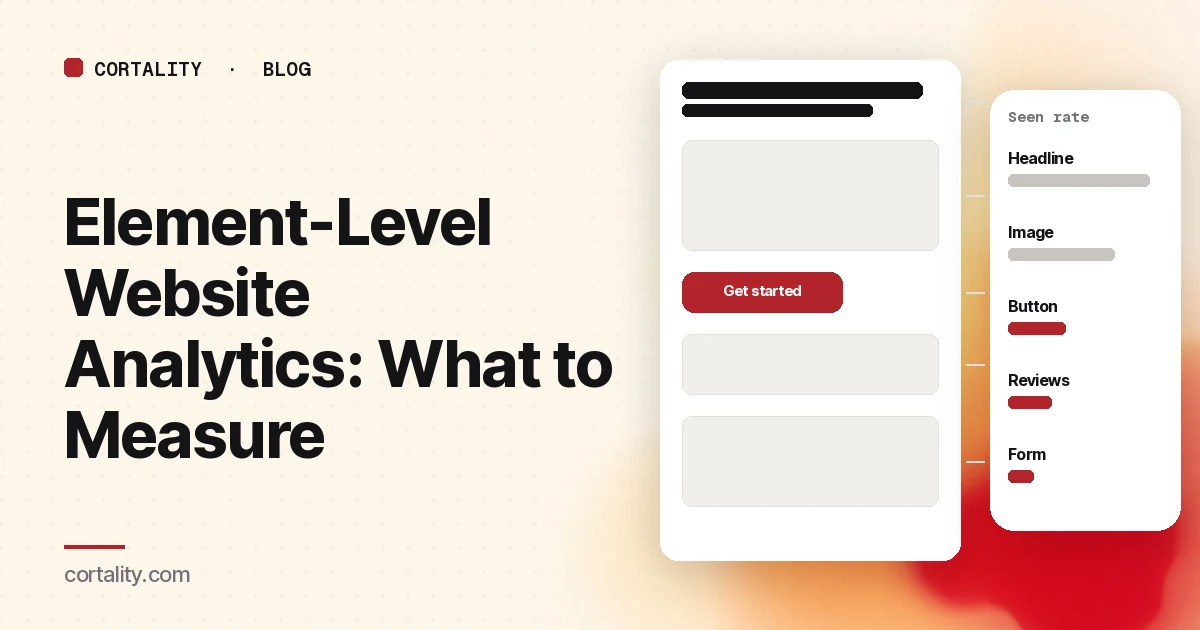
Your analytics can tell you that a landing page converts poorly. It can tell you how many people arrived, how long the session lasted and where they went next. What it usually can't tell you is which part of the page is the problem: the headline nobody reads, the button half your phone visitors never scroll to, or the form field where people give up.
That's the gap element-level analytics fills. Instead of one set of numbers per page, you get numbers for each part of the page. This guide covers what to measure, how to set it up yourself with free tools, and how to turn the numbers into a short list of fixes.
Page-level vs element-level: what changes
Page-level analytics answers "how did this page do?" Element-level analytics answers "how did each piece of this page do?" The difference matters because most page fixes are element fixes. You don't rewrite a whole page because it underperforms. You move a button, rewrite a headline, cut a form field or swap the hero image. To pick the right one, you need evidence about each element.
A common example: a page's main button gets few clicks. Page-level data can't tell you why. Element-level data can separate two very different problems:
- Most visitors never had the button on screen. It sits too low, especially on phones. The fix is placement.
- Most visitors saw the button and didn't click. The offer, the wording or the trust around it isn't working. The fix is the message.
Same symptom, opposite fixes. Without per-element numbers, teams often guess, and the guess is usually "make the button bigger."
The five numbers worth tracking for each element
You don't need dozens of metrics. For each element you care about, these five cover most decisions:
- Seen rate. The share of visitors who had the element on screen at all. For anything below the first screen, this is often the most revealing number on the page.
- Time in view. How long the element stayed on screen for those who saw it. A headline that's on screen for under a second for most visitors isn't being read.
- Interaction rate among those who saw it. Clicks, taps, plays or hovers divided by visitors who saw the element, not by all visitors. Dividing by all visitors mixes a placement problem into a message problem.
- Order. Which elements visitors tend to reach first, and which they skip on the way to something else.
- Exit after view. How often a visit ends soon after an element comes into view. A spike after the price or a long form is a strong hint.
For forms, add field-level numbers: how many people start the form, which field they're on when they stop, and how many submit. Our guide to form abandonment analysis goes deeper on that.
How to set it up yourself with Google Tag Manager
If you already run Google Analytics 4 through Google Tag Manager (GTM), you can measure a handful of key elements for free. It takes some setup per element.
Track whether an element was seen
GTM has an Element Visibility trigger. You point it at an element by its ID or a CSS selector, and it fires when that element comes into view. Useful settings:
- When to fire: "Once per page" gives you a clean "seen" count per pageview.
- Minimum percent visible: how much of the element must be on screen to count. Half is a sensible starting point for most elements.
- Minimum on-screen duration: set this (for example, one second) so an element that flashes past during a fast scroll doesn't count as seen.
- Observe DOM changes: turn this on if the element loads late or appears after an interaction.
Attach a GA4 event tag to the trigger with a clear name, such as element_seen, and a parameter for which element it was (element: hero_cta). You'll need to register that parameter as a custom dimension in GA4 to report on it.
Track interactions with the same element
Add a click trigger for the same selector and send a second event, such as element_click, with the same element parameter. Now you can divide clicks by sightings for each element, which gives you metric 3 above. GA4's enhanced measurement already collects form_start and form_submit events and a scroll event at 90% page depth, so you don't need to rebuild those.
Where the DIY setup runs out
This approach works, and it's free. It has limits worth knowing before you rely on it:
- Every element is manual. Each selector, trigger and tag is set up and named by hand, and a page redesign can break the selectors without any warning.
- You only measure what you picked. If the real problem is an element you didn't tag, you won't see it.
- Time in view is hard. Visibility triggers record that an element was seen (and can require a minimum time on screen), not the total time it stayed in view, unless you add custom code.
- It answers "what", not "what to change". You still have to rank the problems and decide on fixes.
For a few critical elements on one page, it's a good start. For a whole page, or several pages, it becomes a project of its own.
Turning element numbers into fixes
Once you have numbers per element, read them in pairs:
| What you see | What it usually means | What to try |
|---|---|---|
| Low seen rate on a key element | It's too far down, or hidden behind something on mobile | Move it up, or repeat it higher on the page |
| High seen rate, very short time in view | Visitors scroll past it | Make it shorter or clearer, or give it more visual weight |
| High seen rate, low interaction | The message or offer isn't convincing | Rewrite the label, add proof near it, clarify the offer |
| Exits right after an element comes into view | That element raises a doubt or an objection | Answer the doubt on the page, or change what's shown there |
| Lots of attention on something that isn't the goal | It's pulling focus from the main action | Tone it down or move it below the main action |
Then rank the candidates: how many visitors each problem touches, how strong the evidence is, and how much effort the fix takes. Our post on elements visitors ignore covers the most common ones, and if your tool shows click or scroll maps, here's how to read a website heatmap and turn it into a list of fixes. After you ship a fix, compare the same element numbers before and after, over equal windows. The method is in our guide to CRO without A/B testing.
Where Cortality fits
Cortality does element-level measurement without the per-element setup. You add one tag to your site, and it measures how real visitors use every part of the page: where they look, scroll, tap and stop, on every headline, image, button and form field. Every element gets ranked by the attention it really gets, as numbers. From there you get a ranked list of fixes, each with the measured evidence, a plain reason and the exact change to make, and after you ship a fix Cortality re-measures it and gives a verdict. It works alongside Google Analytics and Microsoft Clarity rather than replacing them. See how it works and what a finding looks like.
If you want a first look before installing anything, our free page leak scan takes about a minute and needs no install. It's a prediction from our attention model, not data from your real visitors, so use it to decide where to look first.
Plans are $99, $249 or $499 a month (Starter, Growth and Scale). Start your free week, and you see your first report before you pay. You save a card at signup, and nothing is charged until 3 days after your first report. Cancel before then and you pay nothing, and any charge can be refunded within 14 days. How the free week works.
Questions
What is element-level website analytics?
It means measuring each part of a page separately, such as the headline, a product image, the main button or a form field, instead of only the page as a whole. Typical numbers are how many visitors had the element on screen, for how long, and how many of those clicked or used it.
Can Google Analytics 4 track individual elements?
Not by default, beyond a few built-in events like outbound clicks, scrolls to 90% depth and form starts. With Google Tag Manager you can add element visibility and click triggers for specific elements and send them to GA4 as events. It works well for a handful of key elements, but each one has to be set up and named by hand.
What's the difference between element analytics and a click map?
A click map shows where people clicked, as colors on a screenshot. Element-level analytics gives numbers per element, including elements nobody clicks, like a headline or a trust badge, and it can show whether visitors ever had the element on screen at all. Low clicks on an element visitors never saw is a placement problem, not a copy problem.
Which elements should I measure first?
Start with the parts that carry the decision: the headline, the main call to action, the price or offer, the strongest proof (reviews, logos), and the form. Five to ten well-chosen elements on your highest-traffic page are more useful than tracking everything.