Form Abandonment Analysis: How to Find Where Leads Drop Off, and Fix It
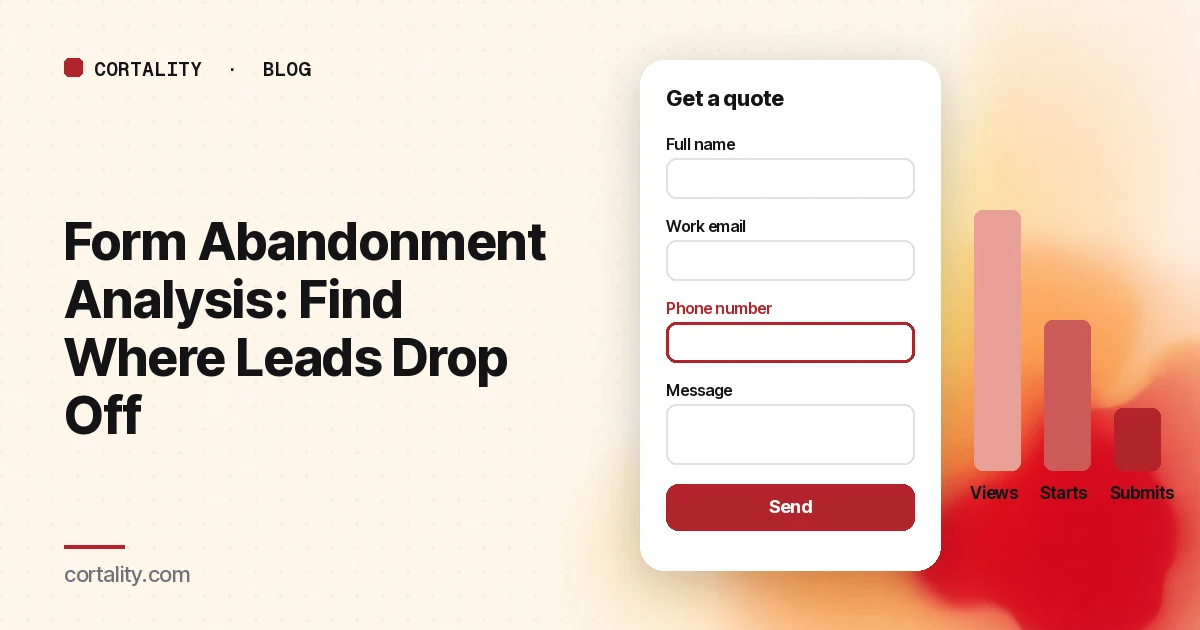
Your lead form gets plenty of views and not many submissions. The obvious fix is to delete fields until it's short. Sometimes that works. Often it removes the wrong field, or the form wasn't the problem at all.
Form abandonment analysis is the step before the fix. You measure how many people see the form, how many start it, how many send it, and where the quitters stop. The pattern tells you whether you have a page problem, a form problem, or a single field problem. Each needs a different fix.
The three numbers to track
Every form analysis starts with three counts for the same period:
- Form views: visitors who reached the part of the page with the form on screen. If the form sits low on the page, this can be much smaller than page views.
- Form starts: visitors who clicked or typed in at least one field.
- Form submits: visitors who sent the form successfully.
From those you get two rates that point in different directions:
- Start rate = starts ÷ views. A low start rate means people see the form and decide not to begin. That's usually about the page: the offer, the trust, or what the form appears to ask for.
- Completion rate = submits ÷ starts. A low completion rate means people begin and give up. That's about the form itself.
Your abandonment rate is the other side of the completion rate: (starts − submits) ÷ starts.
Getting the numbers
Google Analytics 4. With form interactions turned on in enhanced measurement, GA4 records form_start the first time a user interacts with a form in a session and form_submit when they submit it. Google suggests comparing the two to see how many users started a form against how many submitted it (GA4 enhanced measurement events). Submit a test entry yourself to confirm both events fire on your form. Forms aren't all built the same way, so check before you trust the count.
Your form tool or CRM. Count successful submissions on the receiving end too. If GA4 shows far more form_submit events than leads in your inbox, something is breaking between the button and the database.
Field-level data. To see which field people quit on, you need something that records interaction per field: a form analytics tool, session recordings, or custom events that fire when each field is completed.
Reading the pattern
Once you have the numbers, the shape usually points to one of five problems.
Pattern 1: Low start rate, normal completion
People see the form and don't begin. The form isn't the problem; the decision to start is. Look at what sits around the form: is it clear what they'll get, how fast, and what happens next? Is there proof nearby? Does the form look long before anyone touches it? Our 10 landing page checks cover the page side of this.
Pattern 2: Drop at one specific field
Field-level data shows most quitters stop at the same field. Common culprits on lead forms are phone number, budget, company revenue, and long free-text questions. The field asks for something people aren't ready to give, or don't know.
Fix: remove it, make it optional and say so, or move it to after the first conversation. Nielsen Norman Group recommends removing fields whose information can be derived some other way, collected more conveniently later, or simply omitted (NN/g, Website Forms Usability).
Pattern 3: Steady loss across many fields
People drop a little at every field. The form simply asks for too much. Baymard Institute's checkout research found that most sites need only 8 form fields for checkout, while the average checkout in its 2024 benchmark had 11.3, and that the number of fields matters more to the experience than the number of steps (Baymard, Checkout Form Fields). A lead form isn't a checkout, but the same principle applies: count the fields people have to consider.
Fix: list every field and ask whether the first follow-up can happen without it. Combine where you can. Baymard found that 42% of test participants typed their full name into a "First Name" field at least once, and recommends a single "Full name" field (Baymard).
Pattern 4: Drop at the submit button
People fill in everything, click submit, and still don't finish. This usually means errors: a phone number in the "wrong" format, a required field they missed, or a field that cleared what they typed.
Fix: validate each field as soon as the visitor leaves it, show the message right next to the field, and remove the message as soon as it's fixed. Baymard found that 31% of the e-commerce sites in its benchmark had no inline validation at all, and that errors shown only after submitting often contributed to abandonment in testing (Baymard, Inline Form Validation). Don't validate too early: an error that appears before someone finishes typing is just as frustrating (NN/g, Reporting Errors in Forms).
Pattern 5: Phones much worse than desktop
Split every number by device. If phones complete far less often, check field sizes, tap targets, the keyboard type for each field (email, number, phone), and whether the button stays visible above the on-screen keyboard.
Fixes that research supports
Beyond the pattern-specific fixes, a few changes make almost every form easier to finish:
- Visible labels outside the field. Placeholder text that disappears when people type strains memory and makes errors harder to fix (NN/g on placeholders).
- One column. NN/g recommends a single-column layout, with exceptions for short related fields like city, state and ZIP (NN/g).
- Say which fields are optional, and keep optional fields to one or two (NN/g).
- State format rules before people type, not after they fail.
- No reset or clear button. The risk of wiping someone's answers by accident outweighs any benefit (NN/g).
These basics matter. In a study cited by NN/g, 78% of users submitted forms that followed usability guidelines without errors on the first try, compared with 42% for forms that broke them (NN/g).
Measure the fix honestly
Change one thing, write down the date, and compare the start rate and completion rate over equal periods before and after. Use the same days of the week and similar traffic sources. Watch lead quality too: a shorter form that brings more submissions but fewer qualified leads may not be a win. Check how many leads become calls or sales, not just how many arrive.
Small forms don't get enough traffic for a clean A/B test, and that's normal. Our guide to CRO without A/B testing explains how to judge a change on a smaller site without fooling yourself.
The checklist (copy this)
- Form views, starts and submits counted for the same period
- Test submission confirmed in GA4 and in the CRM or inbox
- Start rate and completion rate calculated, split by phone and desktop
- Pattern identified: low start, one field, many fields, submit errors, or mobile
- Each field justified for the first follow-up; the rest removed or moved later
- Single full-name field where possible
- Labels and hints visible outside the fields
- Inline validation on leaving a field, cleared as soon as it's fixed
- Optional fields marked, format rules shown up front
- One change made, dated, and compared over equal periods, including lead quality
Where Cortality fits
Field counts tell you where people quit. They don't always tell you why, or whether visitors even noticed the form in the first place.
For a quick look at the page around your form, our free page leak scan predicts where visitors are likely to look and estimates what fixing the gaps could be worth. No install needed. It's a prediction from our attention model, not data from your real visitors.
Cortality's paid product measures how real visitors use every part of your page, including how many visitors reach your form, and gives you a ranked list of fixes with the exact change for each. After you make a fix, it re-measures to show whether it worked. See what a finding looks like or how the measurement works.
Start your free week and you see your first report before you pay. You save a card at signup, nothing is charged until 3 days after your first report, and you can cancel before then and pay nothing. Any charge can be refunded within 14 days (refund policy). Plans are on the pricing page.
Questions
What is form abandonment?
Form abandonment is when a visitor starts filling in a form, by clicking or typing in at least one field, and then leaves without submitting it. It is different from visitors who never touch the form at all, which is usually a page problem rather than a form problem.
How do I calculate the form abandonment rate?
Divide the number of people who started the form but did not submit it by the number who started it. If 200 people started the form and 120 submitted it, 80 abandoned it, so the abandonment rate is 80 divided by 200, or 40 percent. Use the same date range and count people, not events, where your tool allows it.
Can Google Analytics 4 track form abandonment?
Partly. With form interactions turned on in enhanced measurement, GA4 records form_start the first time a user interacts with a form in a session and form_submit when they submit it. Comparing the two gives you a start-to-submit rate. It does not tell you which field people quit on, so for that you need field-level tracking from another tool or custom events.
How many fields should a lead form have?
As few as you need to follow up well. Remove anything you can look up later, ask for after the first conversation, or do without. Then measure the result, because the right number depends on what you sell and how you qualify leads.