FAQ Page Heatmap: Which Questions Visitors Open, Skip and Leave On
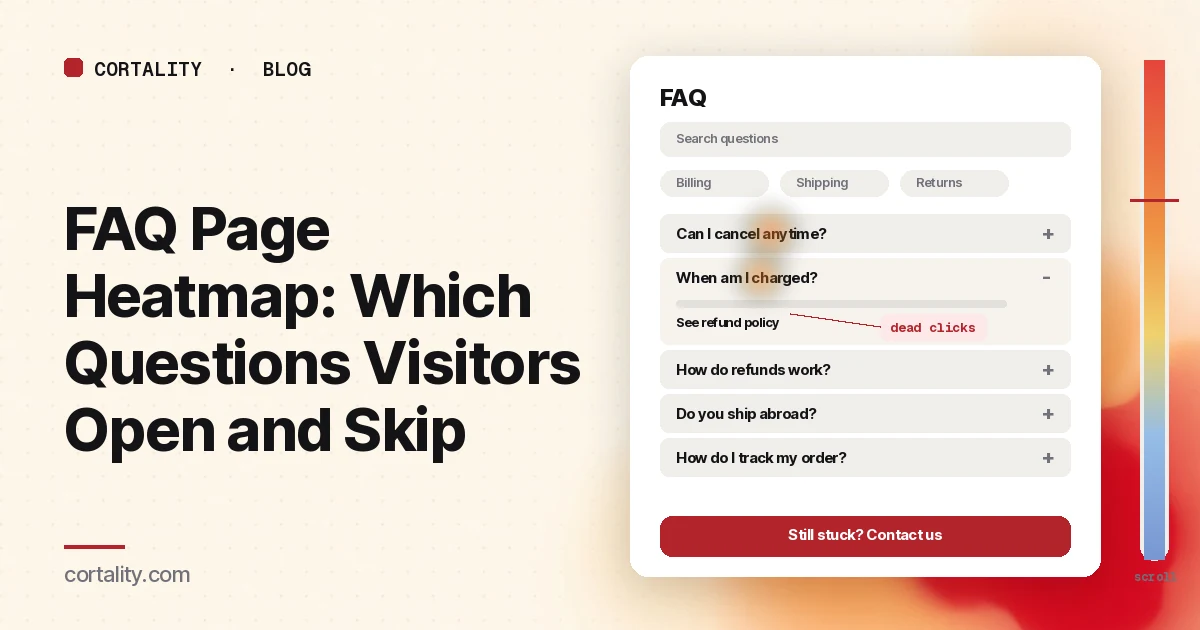
The FAQ page is where visitors go when the rest of your site didn't answer them. Some are customers with a support question. Many are buyers checking the details before they commit: how billing works, whether they can cancel, how long shipping takes, whether the product does the one thing they need. When they find the answer, they go back and buy. When they don't, they contact you, or they leave.
That makes the FAQ page one of the most useful pages to put a heatmap on. It's usually long, rarely redesigned, and judged by a single number, such as page views or fewer support tickets. An FAQ page heatmap shows what's behind that number: which questions people open, which ones they never reach, what they click that doesn't respond, and where they give up.
This guide covers how to set the map up, how to read the clicks and the scroll on an FAQ page, the mistakes that send teams after the wrong fix, and how to turn what you see into one change you can measure. If you're new to heatmaps, how to read a website heatmap covers the basics first.
What a good FAQ page does
Before you read the map, it helps to know what the page is for. Nielsen Norman Group's Susan Farrell makes the case that a usable FAQ does more than answer support questions (NN/g, FAQs Still Deliver Great Value). A few of her points matter most when you read a heatmap:
- People read FAQs to decide whether to buy. Visitors may be judging your products, services and company before they pay. They want to know whether they can get an answer easily, whether the answers sound factual or like marketing hype, and whether they can dismiss their concerns before spending money.
- The questions should be real. NN/g has long warned against made-up questions. If you listen to your users, you know what they ask.
- Large FAQs should be chunked by topic and easy to scan, so people can rule out most topics quickly and read only the part they need.
- Search alone is rarely enough. Your words and your users' words often don't match, and most people aren't good at writing search queries, so a list of real questions in their language helps.
- Put an FAQ link in the footer, where people look for it.
NN/g's report on the topic reviewed the FAQs of 23 organizations and contains 94 guidelines (NN/g, Strategic Design for Frequently Asked Questions). You don't need all of them to read a heatmap. Keep the list above next to you. A heatmap tells you what visitors did. These points help you guess why.
What an FAQ page heatmap shows
A heatmap adds up behavior from many visits onto one screenshot of the page. Microsoft Clarity, a free analytics product from Microsoft, offers click maps, scroll maps, area maps, attention maps and conversion maps, and states there's no minimum traffic needed to generate one (Microsoft Clarity, Heatmaps overview). On an FAQ page, three of them are useful:
- Click maps show where people click on a desktop and tap on a phone or tablet, including on things that aren't links. Clarity ranks clicked elements by number of clicks, and can switch the view to dead clicks (a click with no response), rage clicks (fast repeated clicks in one small area), error clicks, first clicks and last clicks (Microsoft Clarity, Click maps).
- Scroll maps show what share of visitors reached each 5% of the page, the drop-off at each point, and the average fold: how much of the page people see before they start scrolling (Microsoft Clarity, Scroll maps).
- Attention maps help on FAQ pages where answers are written out in full rather than hidden in accordions, because they show which answers people actually spend time on.
There's one catch on FAQ pages. Clarity's documentation notes that the page impression might not show the element the user clicked. If your questions sit in accordions, the screenshot often shows them closed, and the heat for links inside an open answer can land on top of whatever sits there in the closed version. Read the ranked element list, and watch recordings, before you trust the colors.
Conversion maps are only available on projects where Clarity detects purchase events (Microsoft Clarity, Conversion maps), so on most FAQ pages you'll use your own events instead.
Set it up so the map means something
- Decide which FAQ you're reading. A standalone FAQ or help page is a different page from an FAQ block at the bottom of your pricing or product page. Read the standalone page here. For an FAQ block on a pricing page, our pricing page heatmap guide covers how to read its expanders alongside the plans.
- Split by device. On a phone, a long FAQ can run to many screens, topic tabs often turn into a dropdown, and a tap on an accordion heading is the main way to read anything. Read desktop and mobile separately; mobile vs desktop heatmaps explains why the maps differ.
- Split by where visitors came from. People who come from your pricing page are usually buyers with a question about terms. People who come from an order confirmation email are customers. People who land from a search engine on one question want that answer only. If one source sends most of your FAQ traffic, read it on its own.
- Track opens and exits as events. Google Analytics 4 has no built-in event for opening an accordion. Its recommended events include select_content, which signifies that a user has selected some content of a certain type (Google Analytics, Recommended events reference), so you can send it with the question as the content type or ID. Also track clicks from the FAQ to your contact page and to pricing or signup, so you can tell an answered question from an abandoned one.
- Use a fixed, long enough window. Aim for a few hundred FAQ page views per device, and keep the window the same length when you compare before and after a change. If the page is quiet, heatmaps on a low-traffic website covers what you can still learn. If you're about to publish a new FAQ page and have no traffic on it yet, our free page leak scan predicts where attention will land. It's a prediction, not your visitors' behavior, but it shows where to look first.
Read the click map as a ranked list
FAQ pages are long and repetitive, so the colors tend to fade into one band near the top. The ranking tells you more. Sort the top clicked elements into five groups:
- Questions: accordion headings, question links in a jump list, "expand all"
- Ways to find a question: a search field on the page, topic tabs or filters
- Links inside answers: to policies, docs, pricing, sizing charts, order tracking
- Ways to get more help: contact links, chat buttons, "still have a question?" blocks
- Ways out: the menu, the logo, footer links
Then ask what each group is telling you.
The ranking of question opens is a list of what people want to know. On an FAQ page with accordions, the click share on each heading is close to a ranked list of your visitors' questions. If the most-opened questions sit halfway down the page, move them to the top. If one question gets far more opens than the rest, and it's a buying question such as cancellation, refunds or shipping costs, the answer probably also belongs on the page that sent people here, next to the button.
Questions nobody opens are candidates to cut or rewrite. A question with almost no clicks may be one nobody asks, or one whose wording doesn't match how people think. NN/g warns against made-up questions. Check your support inbox and your site search terms before you delete it; if people ask the same thing in different words, rewrite the heading in their words.
Dead clicks on question text are a design problem. If only the small plus icon opens the accordion and people click the question text, the click map shows dead clicks on the headings. NN/g's guidance on accordions is that the heading should work as a button (NN/g, Accordions on Desktop). Make the whole heading row clickable.
Dead clicks inside answers often point at things that look like links. NN/g's review of one FAQ found its links were dark blue, not underlined and hard to tell apart from the text (NN/g, An FAQ's User Experience Deconstructed). The reverse happens too: a product name or policy name in bold looks clickable and isn't. Switch Clarity to dead clicks and check the answers people open most.
Heavy use of the page's own search field means the list is hard to scan. If most visitors type instead of reading, the topics may be too broad or the list too long. Check what they search for; terms that don't match any question are questions you haven't answered yet. If your FAQ search sends people to site search, our site search heatmap guide shows how to read the results side.
Clicks on contact links are not automatically bad. Some questions should end in a conversation. What matters is which questions people opened just before they clicked "Contact us". If the same answer comes right before most contact clicks, that answer didn't settle the question. Rewrite it, or add the detail people ask about. Our contact page heatmap guide covers what happens after they arrive.
Rage clicks usually mean something slow or broken. On FAQ pages that's often an accordion that animates slowly, one that jumps the page when it opens, or a "load more questions" button that doesn't respond. Use Clarity's "View recordings" option on that element to watch those sessions (Microsoft Clarity, Click maps).
Then read the scroll map
FAQ pages are often among the longest on a site, so the scroll map matters. Nielsen Norman Group's 2018 eyetracking study found that people spent about 57% of their page-viewing time above the fold, 74% in the first two screenfuls, and 81% in the first three (NN/g, Scrolling and Attention). Whatever sits in the first screens of your FAQ gets most of the attention.
Check three things:
- Where the steep drop happens. If most visitors stop scrolling after the first topic, the questions below are being read by very few people. Put your most-opened questions above that point, or add a short list of topics with jump links at the top so people can go straight to theirs. NN/g's FAQ review praised jump links for letting users scan the questions and go straight to the one they need.
- Where the average fold sits on mobile. If a large banner and a search field fill the first screen on a phone, the first question may sit below it.
- Whether anyone reaches the bottom. NN/g noted that a long FAQ with no navigation or back-to-top links at the bottom leaves users to scroll all the way up. If people do reach the end, give them a contact link and a link back to the page they were trying to buy from.
A scroll map is also a useful check on GA4, because enhanced measurement fires its scroll event only the first time a visitor reaches 90% of the page (Google Analytics, Enhanced measurement events). On a long FAQ, that tells you very little about whether people saw your second topic.
Accordions or open answers?
Most FAQ pages use accordions, and the heatmap is a good way to check whether yours should. NN/g lists the trade-offs: accordions shorten long pages, but they increase interaction cost, hide content that people may miss altogether if the heading isn't descriptive, and make it harder to compare information when one accordion closes as another opens (NN/g, Accordions on Desktop). Their advice is that if users need information from several accordions at once, it's better to show the content even if the page gets longer.
On your own map, that turns into two checks:
- If people open several questions in a row, especially ones that relate to each other such as billing, cancellation and refunds, consider showing those answers open, or merging them into one answer.
- If people open only one question and leave, accordions are probably working: they let visitors find their one answer fast. Look at whether the answer they opened led anywhere useful.
NN/g's FAQ guidance also suggests that for short and medium-length FAQs, a list of questions followed by the questions and answers is still the best basic layout, and for longer ones, a list of questions that lead to separate answer pages works better (NN/g, FAQs Still Deliver Great Value).
A note on FAQ pages and search
Many teams built FAQ pages partly for the expandable questions Google used to show under search listings. That reason is gone. Google's Search Central changelog says the FAQ rich result no longer appears in Google Search starting May 7, 2026, and the documentation for it was later removed (Google Search Central, Latest documentation updates). An FAQ page can still match the questions people type into search engines, as NN/g points out, but only if it answers them in their own words. Write the page for the people reading it. The heatmap shows you whether it works for them.
Common mistakes reading FAQ page heatmaps
- Trusting the colors on a page full of accordions. The screenshot often shows every question closed, so clicks inside answers can look like clicks on something else. Use the element ranking and recordings.
- Reading a standalone FAQ and an FAQ block together. Visitors on a pricing page FAQ are close to buying. Visitors on a help center FAQ are often customers. Read them separately.
- Deleting questions because nobody opens them. A cold question may be worded the way your team talks, not the way your customers do. Check the support inbox first.
- Treating fewer support tickets as proof the page works. Visitors who can't find an answer don't always contact you. Some of them simply leave. Track exits as well as contact clicks.
- Reading desktop and mobile together. On a phone, a long FAQ runs to many screens and the scroll drop is much steeper. Mixed together, the map hides both patterns.
- Adding more questions to fix a long page. If people stop after the first topic, more questions won't help. Reorder by what people open, and add jump links.
Turn one pattern into one change
Pick the single pattern that affects the most FAQ visitors and write it down as a hypothesis with a number you can re-check. For example (illustrative): "On mobile, the cancellation and refund questions get the most opens but sit below the point where most visitors stop scrolling. Move them into the first screen and add the one-line answer next to the pricing page buttons, then compare signup clicks from the FAQ per FAQ page view over two equal weeks."
Our CRO hypothesis template gives you a format for writing these down. If the page doesn't get enough traffic for a proper A/B test, CRO without A/B testing shows how to compare a before-and-after honestly. If you'd rather not run that re-measurement by hand, every Cortality plan re-measures each fix you ship; compare the plans.
FAQ page heatmap checklist (copy this)
- Standalone FAQ page read on its own, not grouped with FAQ blocks on other pages
- Desktop and mobile read separately
- Large traffic sources (pricing page, emails, search) read on their own
- A few hundred FAQ page views per device in a fixed window
- Question opens tracked as events (for example select_content)
- Click ranking sorted: questions, ways to find, links in answers, more help, ways out
- Most-opened questions moved above the steep scroll drop
- Whole accordion heading row clickable, links inside answers look like links
- Questions people open before clicking Contact rewritten
- Jump links at the top and a way back at the bottom of long FAQs
- One change shipped, re-measured over the same window length
Where Cortality fits
Most of this comes down to one question: what do visitors actually see, skip and tap on your FAQ page, and where do they give up? Cortality measures how real visitors use every part of your page, including each question, each answer and the links inside them, on each device. You get a ranked list of fixes, each with the evidence and the exact change to make, and after you ship a fix Cortality re-measures it and tells you whether it worked. It works alongside Google Analytics and Microsoft Clarity rather than replacing them. See how it works or what a finding looks like. For software companies, see Cortality for SaaS.
For a quick first look, our free page leak scan takes about a minute and needs no install. It's a prediction from our attention model, not data from your real visitors, so use it to decide where to look first.
Plans are $99, $249 or $499 a month (Starter, Growth and Scale). Start your free week, and you see your first report before you pay. You save a card at signup, and nothing is charged until 3 days after your first report. Cancel before then and you pay nothing, and any charge can be refunded within 14 days. How the free week works.
Questions
What does an FAQ page heatmap show?
Where visitors click or tap on your FAQ page, how far they scroll, and which elements they click that don't respond. On most FAQ pages that means which questions people open, which topics they jump to, which ones they never reach, and whether they leave for your contact page, pricing page or somewhere else.
Can a heatmap track clicks on FAQ accordions?
Yes, a click map records clicks and taps on accordion headings like any other element, so the ranked list shows which questions get opened most. The screenshot under the heat may show the accordions closed, though, so use the element ranking and session recordings rather than the colors alone. To count opens in analytics, send an event when a question is expanded.
Do FAQ pages still help SEO?
A page that answers real questions in your customers' words can still match the questions people type into search engines. What changed is the FAQ rich result: Google says it no longer appears in Google Search starting May 7, 2026, so FAQ markup won't add expandable questions under your listing. Write the page for visitors, not for that feature.
How much traffic does an FAQ page heatmap need?
A few hundred FAQ page views per device in the window you're reading is a sensible minimum. Microsoft Clarity will draw a heatmap from any amount of traffic, but a map from a few dozen visits mostly shows those few people. If your FAQ page is quiet, read a longer window and watch a few session recordings alongside it.