How to Audit a Shopify Product Page for Conversions: A 12-Point Checklist
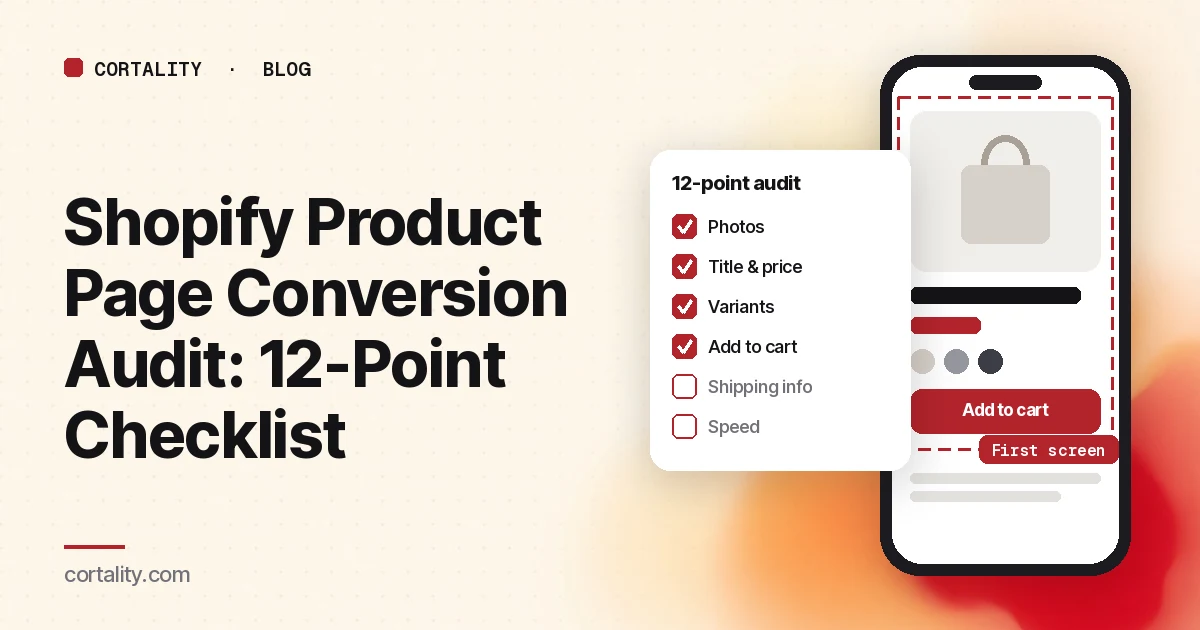
Your product page is where a browser turns into a buyer, or doesn't. If shoppers land on it and leave without adding to cart, you don't necessarily need a new theme or an expensive agency audit. You can run a useful audit yourself in an afternoon, as long as you look at the right things in the right order.
This checklist is built for Shopify stores, but most of it applies to any online store. If your traffic lands on a campaign or lead-gen page instead, use our landing page conversion checklist.
Before you start: pick the right page and get a baseline
Pick one product. Start with the product page that gets the most visits. A fix there reaches the most shoppers, and you'll see a result sooner.
Write down where you are today. In Shopify's analytics, note how many sessions that page gets and how many shoppers add to cart and reach checkout over the last few weeks. You'll compare against this later.
Look at it the way shoppers do. Check your analytics for the split between phone and desktop. For most stores, the phone version is the one that matters, so do this audit on a real phone first, not in a desktop browser.
The 12-point product page checklist
The first screen (checks 1-3)
1. Can a shopper tell what this is and what it costs without scrolling? On a phone, the first screen should show the main photo, the product name, the price, and ideally the start of the add to cart area. If a giant announcement bar, a popup, or a huge logo pushes these down, shoppers have to work before they even know the price.
2. Does the main photo sell the product? The first image should show the product clearly, on a clean background or in use. Check that shoppers can zoom and swipe, that the photos show scale (on a person, in a hand, in a room), and that picking a color or style changes the photo to match.
3. Is the product name and the line under it doing any work? "The Classic" says nothing. A name plus a short line saying what it is and who it's for ("Waterproof hiking boot for wide feet") answers the shopper's first question.
Choosing and buying (checks 4-7)
4. Are variants easy to pick? Use buttons or swatches instead of dropdowns where you can, so shoppers see all the options at once. Mark sold-out options clearly instead of letting shoppers pick one and hit an error. If sizing matters, put the size guide link right next to the size picker.
5. Is the add to cart button impossible to miss? It should be the most visible button on the page, in a color that stands out. On long mobile pages, a sticky add to cart bar keeps it reachable. Tap it yourself and check that something obvious happens: a cart drawer opens, a message appears, or the cart count changes.
6. Is the full cost clear before checkout? Surprise costs at checkout are a classic reason to abandon. Near the price or the button, say how shipping works: free over a threshold, flat rate, or calculated at checkout. If you know a delivery estimate, show it.
7. Do your extras help or get in the way? Upsell blocks, bundles, subscription toggles, and "frequently bought together" widgets can raise order value, but each one adds a decision. Check that none of them push the add to cart button down or confuse what's being bought.
Reassurance (checks 8-10)
8. Are reviews visible near the top? A star rating and review count near the product name, linking down to the full reviews, help shoppers who are almost ready. Only show real reviews. If you have none yet, leave the widget off rather than showing "0 reviews."
9. Does the description answer real questions? Pull the questions customers email you about this product, like fit, materials, care, compatibility, and what's in the box, and answer them on the page. Put the most important points in a short scannable list near the top and the full details below.
10. Are returns and shipping explained next to the button? One line under add to cart, such as "Ships in 2 business days · Free returns within 30 days," removes a reason to hesitate. Only promise what your policy actually says, and link to the full policy.
Speed and apps (checks 11-12)
11. Does the page load fast on a phone? Run the product page through Google's free PageSpeed Insights on mobile. Large product photos are the usual problem. Upload images at sensible sizes, and check that the main product photo isn't lazy-loaded.
12. Are old apps slowing you down? Every Shopify app that adds something to your storefront can add scripts. Go through your installed apps, remove the ones you no longer use, and check that uninstalled apps didn't leave code behind in your theme. A theme preview with a heavy app turned off is a quick way to see how much it costs you in speed.
Turn your notes into a fix list
You'll probably end up with more problems than you can fix this week. Rank them:
- Reach: does it affect every shopper (first screen, price, button) or only some (a specific variant, the reviews section far down)?
- Evidence: did you just notice it, or do customer emails, reviews, or session recordings point to it too?
- Effort: is it a settings change, a theme edit, or a developer job?
Start with what affects the most shoppers, has the most evidence, and is easiest to change. If you're deciding whether to do this yourself or pay an agency, here's what agencies charge for a CRO audit. Write each fix as one specific change, such as "Move the shipping line directly under add to cart," not "improve trust."
Measure the change
Make one change at a time and note the date. Then compare add to cart and checkout rates on that page over equal periods before and after, covering the same days of the week. Avoid judging a change during a sale, a holiday, or a new ad campaign, because those shift shopper behavior on their own.
Most stores don't have enough traffic on one product to run a proper A/B test, and that's fine. Our guide to CRO without A/B testing explains how to measure changes honestly on a smaller store.
Getting ready for Black Friday? Once these basics are done, add the sale-specific checks in our Black Friday product page checklist, and build your sale page with the Shopify Black Friday landing page checklist.
The checklist (copy this)
- Picked the product page with the most visits and noted its current add to cart and checkout numbers
- Audited on a real phone first
- Photo, name, price, and add to cart are visible without scrolling on a phone
- Photos zoom, show scale, and change with the selected variant
- Name plus one line says what it is and who it's for
- Variants use buttons or swatches; sold-out options are clearly marked; size guide sits next to the size picker
- Add to cart is the most visible button, reachable on long pages, and clearly confirms the add
- Shipping cost and delivery estimate are clear before checkout
- Upsells and bundles don't push down or confuse the main button
- Real star rating and review count sit near the product name
- Description answers the questions customers actually ask
- Shipping and returns line sits under the button and matches the real policy
- Mobile PageSpeed checked; main photo not lazy-loaded
- Unused apps removed and leftover app code cleaned up
- Fixes ranked by reach, evidence, and effort; one change made and dated
Where Cortality fits
A checklist tells you what to look at. It can't tell you which problem is costing your store the most.
For a quick start, our free page leak scan shows where your product page is likely losing buyers and what fixing it could be worth. Paste the URL and get a result in about a minute, with no install or card. The scan is a prediction from our attention model, not data from your real shoppers, so treat it as a place to start looking.
When you want answers from your own traffic, our landing page CRO audit takes over from the scan: Cortality's paid product measures how real visitors use every part of your page, gives you a ranked list of fixes with the exact change for each, and re-measures after you ship a fix to show whether it worked. It works with Shopify: you paste one tag into your theme (install steps). It covers your storefront pages. Shopify's checkout pages aren't editable on standard plans. See what a finding looks like.
Your first week is free, and you see your first report before you pay. You save a card at signup, and nothing is charged until 3 days after your first report. Cancel before then and you pay nothing, and any charge can be refunded within 14 days. How the free week works.
FAQ
What should a Shopify product page audit cover?
The first screen on a phone (photo, name, price, button), how easy variants are to pick, the add to cart button, total cost and delivery, reviews, the description, returns information, and page speed, including the weight of installed apps.
Do I need a new theme to fix a product page that isn't converting?
Usually not. Most product page problems, like a buried button, unclear shipping costs, confusing variants, or slow images, can be fixed in your current theme's settings or with small code edits.
How often should I audit my product pages?
Whenever you change the theme, add apps, or launch a major product, and otherwise every few months. Apps, promotions, and theme updates change pages over time without anyone noticing.
Can Cortality measure my Shopify checkout?
Cortality covers your storefront pages, where you paste the tag in your theme. Shopify's checkout pages aren't editable on standard plans, so the tag can't be added there. See the install docs.