Shopify Collection Page Optimization: A 10-Point Checklist for Product Lists
Collection pages don't get much attention. They're a grid the theme builds for you, and most of the effort goes into the homepage and product pages. But for many shoppers, the collection page is where they decide whether you have what they want. If the list is hard to narrow down, or the product cards don't show enough to choose from, they leave before ever seeing your best product page.
The research backs this up. Baymard Institute's 2025 product list benchmark of 170+ large ecommerce sites rated 58% of desktop sites and 78% of mobile sites "mediocre" or worse for product list UX. Those are big sites with UX budgets, so it's worth checking yours rather than assuming the theme defaults have it covered.
Here's a 10-point checklist, in the order a shopper experiences the page.
Before you start: pick the collection and get a baseline
Pick the collection that gets the most visits, or the one your ads point to. In Shopify, the Sessions by landing page report shows which pages sessions start on, according to Shopify's behavior report docs. Note how many sessions start there and how many add to cart. Open the Searches with no results and Searches with no clicks reports too. They show the words shoppers use when they can't find something, which is useful for filters and product titles later.
Then open the collection on a phone. Baymard's 2026 mobile research puts mobile at around three quarters of retail store visits, and its product list numbers show phones are where lists perform worst.
The 10-point collection page checklist
What shows first (checks 1-2)
1. Are the right products at the top? The top of the list is the one part every visitor sees. Check what your collection is sorted by and whether that puts the products most shoppers want first. Baymard found shoppers commonly look for four sort options: price, user rating, best selling and newest, and that 69% of mobile sites don't offer all four. Make sure your sort menu has them, and pick a default on purpose rather than leaving whatever was set when the collection was created.
2. Does the top of the page earn its space? A large banner image and a long description above the grid push products off the first phone screen. Keep the intro to a line or two that says what's in the collection, and let the products start early. If you want longer text for search, it can go below the grid.
Filters and sorting (checks 3-6)
3. Do the filters match how people choose? Baymard's testing found five filter types that should always be offered where they apply: price, average user rating, color, size and brand. In its benchmark, 51% of sites didn't offer all five. Beyond those, add the attributes that matter in your category. Shopify's guide to ecommerce filters uses examples like SPF level for sunscreen or roast profile for coffee, which you can build from product metafields.
On Shopify, the free Search & Discovery app handles this. Shopify says it's available on all plans and lets you add, remove and reorder filters, including metafield-based ones, from the admin without code. Your theme also needs to support the filters: Shopify lists Dawn, Sense and Craft among the themes with built-in filter support.
4. Can shoppers pick more than one value? A shopper who wants black or navy shouldn't have to run two separate searches. Baymard found 14% of sites don't allow combining values of the same filter type, and that participants who hit this used filters less and found suitable products less often. Turn on multiselect for color, size, brand and similar filters.
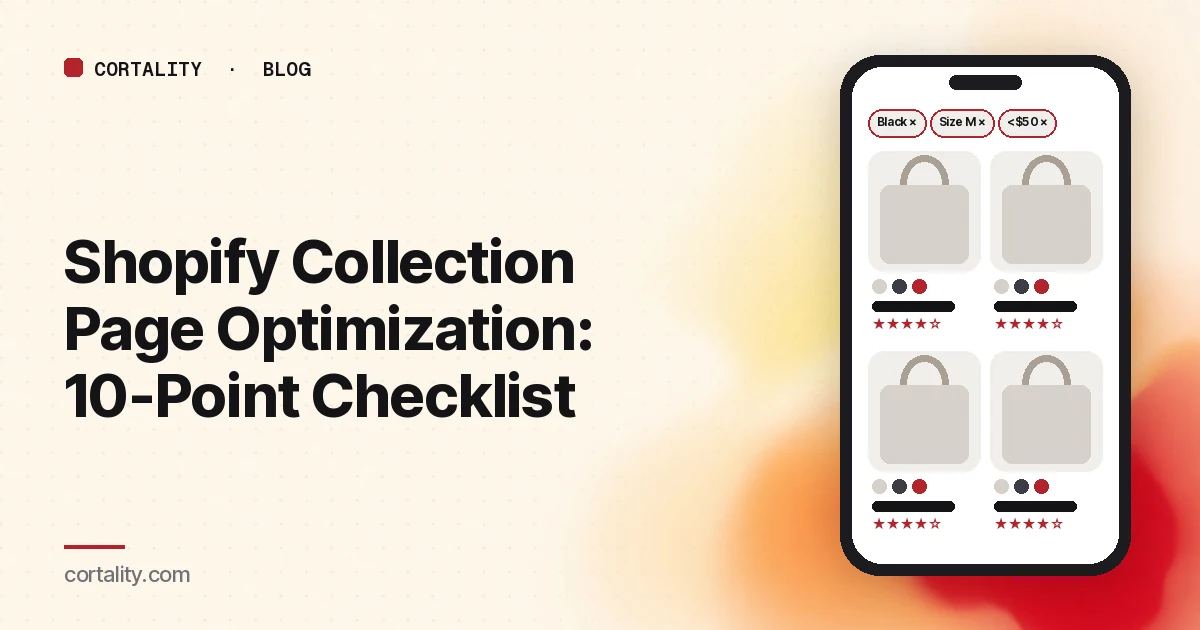
5. Can shoppers see which filters are on? Show applied filters as removable chips above the product list. Baymard's product list research recommends always displaying applied filters in an overview, and notes that without one, shoppers lose track of the list's scope and can wrongly conclude you don't have what they want.
6. Do filters work on a phone? A desktop sidebar doesn't fit a phone. Shopify's filter guide describes patterns that work: a filter bar that stays in view as shoppers scroll, a bottom sheet that slides up within thumb reach, or a row of tappable chips for a few key filters. Open your collection on a phone and apply three filters. If it takes many taps and page reloads, many shoppers won't bother.
Product cards (checks 7-9)
7. Is each product one card, not one card per color? Baymard found 42% of sites list each variation separately, which clutters the list and makes a specific color hard to find. Combine variations into one card and show the colors as swatches. On mobile, Baymard found 73% of sites don't make all swatches available in list items for visually driven products. If a product comes in 11 colors, let shoppers scroll the swatches rather than showing three and a "+8."
8. Does the card show enough to decide? Baymard found 80% of sites don't provide three or more thumbnails per product in lists, so shoppers have to open product pages just to see another angle. If your theme supports a second image on hover or swipeable images, use it, and make sure the extra images are useful: product in use, scale, back view. Include the price and, if you have real reviews, the star rating and count.
9. Is the price comparable? If similar products come in different sizes or pack counts, show the price per unit. Baymard found 67% of sites don't, which forces shoppers to do the math themselves. This matters most for consumables, food, beauty and anything sold by weight or volume.
Dead ends (check 10)
10. What happens when nothing matches? Apply a combination of filters that returns nothing, and search for a misspelled product name. A blank page is a dead end. Shopify's filter guide suggests showing unavailable filter values as disabled rather than letting shoppers apply them, and setting up synonym groups in Search & Discovery so "sofa" and "couch" return the same products. Use your Searches with no results report to find the words shoppers actually use, and add those as synonyms or to your product titles.
Measure one change at a time
Collection pages are a middle step, so judge them by what happens next: the share of collection visitors who open a product page, and the share who add to cart. Make one change, write down the date, and compare equal periods before and after with the same days of the week. Avoid comparing across a sale or a new ad campaign. Shopify also notes that a session measurement update rolled out from September 21 to 23, 2026, so keep both periods on the same side of that date.
Most collections don't get enough traffic for a proper A/B test, and that's fine. Our guide to CRO without A/B testing explains how to measure changes honestly on a smaller store. Once shoppers are reaching product pages, our 12-point Shopify product page audit is the next step, and if you're building a sale collection for the holidays, see the Shopify Black Friday landing page checklist.
The checklist (copy this)
- Picked the busiest collection; noted sessions, product views and add to carts
- Read the "Searches with no results" and "no clicks" reports
- Sort menu has price, rating, best selling and newest; default chosen on purpose
- Banner and intro don't push products off the first phone screen
- Filters for price, rating, color, size and brand where they apply, plus category-specific ones
- Multiselect on for filters where shoppers want more than one value
- Applied filters shown as removable chips above the list
- Filtering tested on a phone: sticky trigger, easy to apply and return
- One card per product, with all color swatches reachable
- Extra images, price and real ratings on each card
- Price per unit shown where sizes or pack counts differ
- No-result filters and searches lead somewhere useful; synonyms set up
- One change at a time, dated, compared over equal periods
Where Cortality fits
A checklist tells you what a good collection page has. It can't tell you whether shoppers on your page actually use the filters, see the second row, or notice the swatches.
Our free page leak scan predicts where visitors look on a page and what fixing the leak could be worth, with no install needed. It's a prediction from our attention model, not data from your real shoppers.
Cortality's paid product measures how real visitors use every part of your page, element by element, then gives you a ranked list of fixes with the exact change for each and re-measures after you ship one. It works with Shopify: you paste one tag into your theme (install steps). See what a finding looks like.
Start your free week, and you see your first report before you pay. You save a card at signup, and nothing is charged until 3 days after your first report. Cancel before then and you pay nothing, and any charge can be refunded within 14 days. How the free week works.
Questions
Which filters should a Shopify collection page have?
Start with the filters that match how shoppers choose in that category. Baymard Institute's testing found five filter types that should always be offered where they apply: price, average user rating, color, size and brand. On Shopify, the free Search & Discovery app lets you add filters, including custom ones built from product metafields.
What should the default sort order be on a collection page?
There's no single right answer, but Baymard found shoppers commonly look for four sort options: price, user rating, best selling and newest. Offer all four, and choose a default that puts products most shoppers want near the top.
Should each color of a product be a separate item in the collection?
Usually not. Baymard's testing found that listing each color separately clutters the list and makes it harder to find a specific variation. Combine variations into one product card, with swatches for the colors.
How do I know if my collection pages are the problem?
Check how many visitors who land on a collection page go on to view a product. Shopify's Sessions by landing page report shows where sessions start, and the search reports show terms shoppers searched that returned no results or no clicks.