Shopify Checkout Optimization: 10 Settings and Checks That Remove Friction
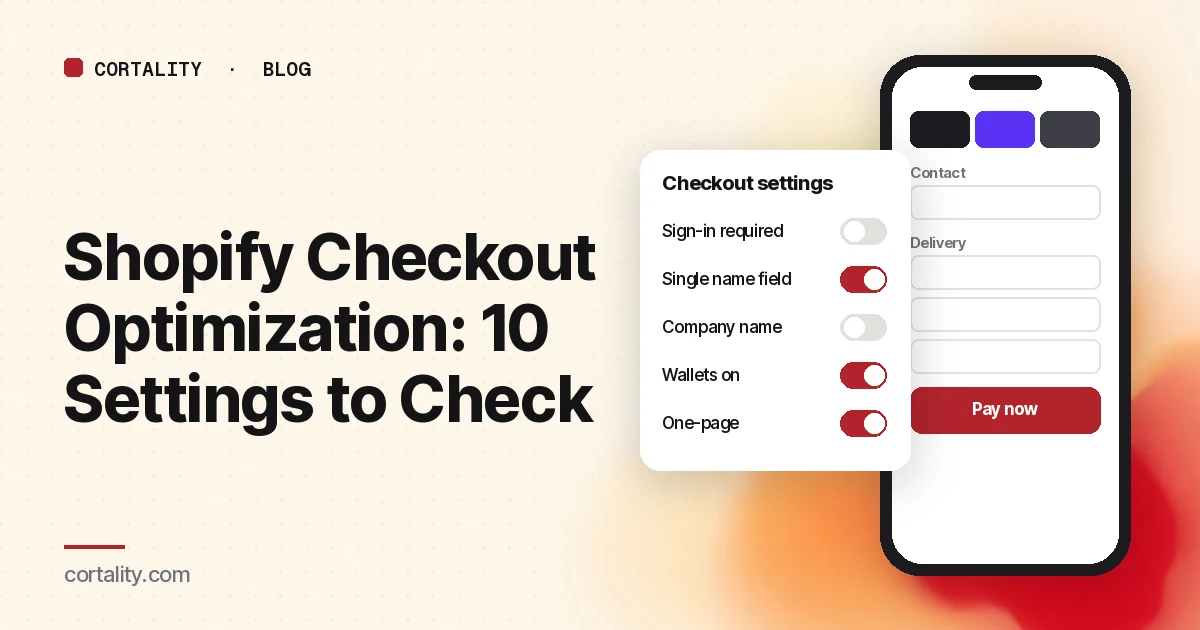
On most Shopify plans you can't move fields around in checkout or add your own code to it. That leads a lot of store owners to assume there's nothing to optimize. There is. The checkout settings decide how many fields buyers fill in, whether they can pay with a wallet in two taps, and whether they have to create an account first. And a lot of checkout abandonment starts before checkout, with costs and promises the shopper didn't see earlier.
This guide covers what you can change, in the order it's worth checking.
What you can and can't change
According to Shopify's checkout customization docs, every plan from Basic up gets the checkout and accounts editor, branding (logo, colors, fonts, background), and apps on the thank you and order status pages. Apps that customize the information, shipping and payment pages, and the Checkout Branding API, are only on Shopify Plus.
So on most plans, your levers are the checkout settings, your payment methods, and everything shoppers see before they reach checkout. That's where this list focuses.
Why fields matter more than steps
Baymard Institute's checkout research found that the number of form fields affects checkout usability far more than the number of steps. In its 2024 benchmark, the average checkout had 11.3 form fields, while Baymard says most sites need only 8. Every field you can remove or make optional is one less thing to type on a phone.
The 10 checks
Fields (checks 1-5)
All five of these live in your Shopify admin under Settings > Checkout, as described in Shopify's checkout form options guide.
1. Contact method. You can let customers use email only, or "Phone number or email." Shopify notes there's no option to require both. Email is the default on new stores. If your order updates and post-purchase emails depend on an email address, keep email. If you offer phone, make sure your order notifications work for customers who only give a number.
2. Sign-in before checkout. There's a setting to require customers to sign in to an account before they can check out. Leave it off unless you sell something that truly needs it, such as wholesale pricing. Shopify notes that when it's on, accelerated checkout options such as Apple Pay aren't shown in the cart. In Baymard's abandonment survey, 18% of shoppers who abandoned for reasons other than browsing said the site wanted them to create an account.
3. Name fields. By default, Shopify asks for first and last name in two fields. Selecting Only require last name changes it to a single field. Baymard's testing found that 42% of participants typed their full name into a "First Name" field at least once, and recommends a single name field. If your fulfillment or customer service doesn't need names split, consider the single field.
4. Company name. If you don't sell to businesses, set Company name to Don't include. Shopify also notes that if you make it Required, customers who pay with Apple Pay or Google Pay have to type a company name when their wallet doesn't include one.
5. Address line 2 and phone. Leave Address line 2 as Optional. Shopify warns that setting it to Required or Don't include can stop some customers from completing their purchase, depending on where they live. The Shipping address phone number is Optional by default on new stores. Make it Required only if your carrier or payment provider needs it.
Payment (checks 6-7)
6. Accelerated checkout buttons. Shopify's accelerated checkout buttons let customers pay with Shop Pay, Apple Pay, Google Pay, PayPal, Amazon Pay or Venmo using the details already saved with that method. Which branded buttons appear depends on the payment methods you've activated, plus the shopper's browser, device and payment history. If you haven't activated any third-party method, only the unbranded "Buy it now" button shows. Check which methods are on, then look at your product page and cart on an iPhone and an Android phone to see what buyers actually get.
7. Checkout layout. Shopify's one-page checkout puts contact, shipping and payment on one page, and Shopify says it's the default layout. If your store was switched to three-page checkout at some point, you can switch back in the checkout and accounts editor under the Checkout layout setting. If you had a background image on checkout, Shopify notes it may need to be swapped for a color after switching. Given Baymard's finding that fields matter more than steps, don't expect the layout alone to fix a checkout. Do it alongside checks 1 to 5.
What shoppers know before checkout (checks 8-9)
8. No cost surprises. In Baymard's survey, extra costs (shipping, tax, fees) were the top reason shoppers abandoned, named by 40% of those who weren't just browsing, and 12% said they couldn't see or calculate the total up front. Checkout is the wrong place for a shopper to learn your shipping price. State how shipping works on the product page and in the cart, and if you have a free shipping threshold, show how far the cart is from it.
9. Delivery and returns stated plainly. In the same survey, 20% abandoned because delivery was too slow and 13% because the returns policy wasn't satisfactory. Shopify's checkout overview notes that customers can review your store policies from checkout, so make sure your refund and shipping policies are filled in under your policy settings and match what your product pages say. During the holidays, add a clear order-by date. Our Black Friday product page checklist covers that.
Stock and testing (check 10)
10. Test the whole thing, on a phone. Shopify recommends placing a test order whenever you change payment settings, and explains how in its test order guide: use the test payment gateway or Shopify Payments test mode. Customers can't place live orders while test mode is on, so do it at a quiet time and switch it back.
While you're testing, add a low-stock item. Shopify checks the cart against inventory at each checkout step and only holds inventory once payment is submitted, so during a busy sale a shopper can lose an item between steps. If you're running a sale on limited stock, consider showing stock levels honestly on the product page so it isn't a surprise.
How to tell if the changes helped
In Analytics > Reports, the Conversion rate breakdown report shows sessions that reached checkout and sessions that completed checkout, as described in Shopify's behavior reports docs. The ratio between those two is your checkout completion. Change one setting, note the date, and compare equal periods before and after with the same days of the week. Shopify notes a session measurement update rolled out on September 21-23, 2026, so don't compare across that boundary.
Most stores don't have the volume for a proper A/B test on checkout settings. Our guide to CRO without A/B testing shows how to read a before-and-after change honestly.
The checklist (copy this)
- Know what your plan allows: settings and branding on all plans, page apps on Plus only
- Contact method set to match how you follow up with buyers
- "Require sign-in before checkout" off unless truly needed
- Single name field considered ("Only require last name")
- Company name set to Don't include if you don't sell to businesses
- Address line 2 left Optional; phone Optional unless your carrier needs it
- Wallet payment methods activated and checked on iPhone and Android
- Checkout layout confirmed (one-page is Shopify's default)
- Shipping cost and free shipping threshold shown before checkout
- Delivery estimate and returns policy stated, and store policies filled in
- Test order placed on a phone, including a low-stock item
- One change at a time, dated, compared over equal periods
Where Cortality fits
Most of the checkout fixes above depend on what shoppers saw, or missed, before they got there: the shipping line, the delivery date, the returns note.
Our free page leak scan predicts where visitors look on your product page and what fixing the leak could be worth, with no install needed. It's a prediction from our attention model, not data from your real shoppers.
Cortality's paid product measures how real visitors use every part of your storefront pages, like product, collection and cart pages, and gives you a ranked list of fixes with the exact change for each, then re-measures after you ship. You paste one tag into your theme (install steps). It doesn't run inside Shopify's checkout pages. See what a finding looks like.
Start your free week, and you see your first report before you pay. You save a card at signup, and nothing is charged until 3 days after your first report. Cancel before then and you pay nothing, and any charge can be refunded within 14 days. How the free week works.
Questions
Can I customize the Shopify checkout on the Basic plan?
Partly. Shopify says the checkout and accounts editor, branding such as your logo, colors and fonts, and apps on the thank you and order status pages are available on Basic and higher. Apps that customize the information, shipping and payment pages, and the Checkout Branding API, are only on Shopify Plus.
Is one-page or three-page checkout better on Shopify?
Shopify says both collect the same information and support the same customizations, and one-page checkout is the default. Baymard Institute's research finds the number of form fields matters more to checkout usability than the number of steps, so cutting fields is usually the bigger win.
Should I require customers to create an account to check out?
Usually not. In Baymard Institute's survey, 18% of shoppers who abandoned for reasons other than browsing said the site wanted them to create an account. Shopify also hides accelerated checkout buttons such as Apple Pay in the cart when sign-in is required.
How do I test my Shopify checkout without charging a real card?
Place a test order with Shopify's test payment gateway or Shopify Payments test mode. Customers can't place live orders while your payment provider is in test mode, so switch it back as soon as you're done.